


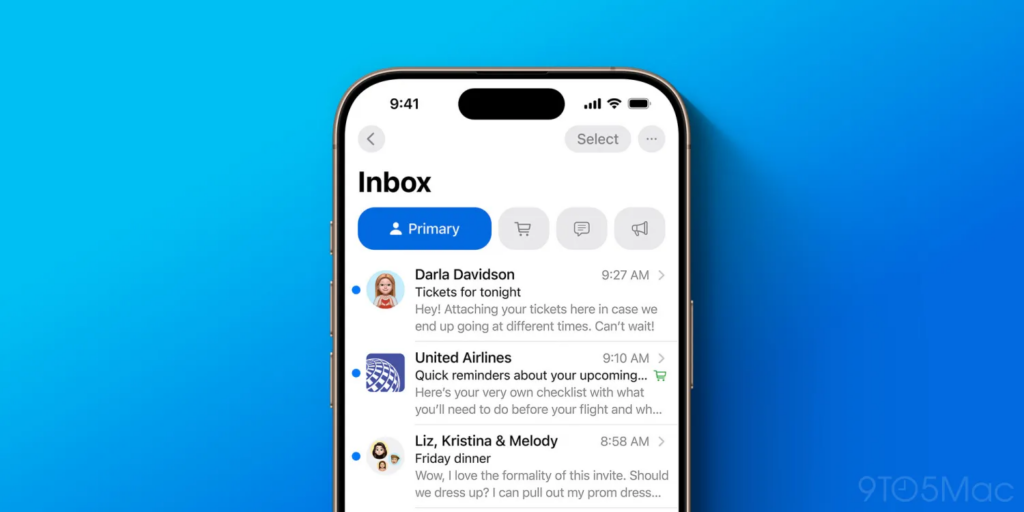
The release of iOS 18.2 marks a groundbreaking update for Apple’s native Mail app, introducing the most significant changes in its history. With a sleek new interface and powerful organization features, the Mail app is designed to help users manage their inboxes more efficiently while maintaining flexibility. Here’s a closer look at the new features and how they can transform your email experience.
1. Enhanced Visual Design Inspired by Messages
The updated Mail app now mirrors the aesthetic of Apple’s Messages app, integrating contact photos into your inbox. Instead of viewing text-heavy lists, emails now appear visually engaging with contact images or branded logos, making it easier to identify senders at a glance.
- Business Branding Integration:
Apple’s new Branded Mail tools allow businesses to upload logos, which display not only in Mail but also in the Phone and Apple Pay interfaces.
If no branded logo is available, Apple automatically pulls relevant icons from Apple Maps.
This redesign prioritizes clarity and familiarity, giving your inbox a polished, professional appearance.
2. Smart Inbox Categorization for Easy Organization
The biggest functional update in iOS 18.2 Mail is its new automated inbox categories, which are designed to streamline how emails are sorted. Your inbox is now divided into four distinct tabs:
- Primary: Focus on important messages, like personal or work-related emails.
- Transactions: Organizes order confirmations, receipts, and shipping updates.
- Updates: Ideal for newsletters, alerts, and notifications.
- Promotions: Automatically filters marketing emails and offers.
Each category also separates emails into New Messages and Older Messages, ensuring easy navigation.
💡 Pro Tip: Update your notification settings to show unread counts only for the Primary inbox, helping you stay focused on essential messages.
3. Customization and Manual Adjustments
Apple has ensured flexibility for users who prefer more control over their inbox organization:
- Reassign Emails to Categories: If emails land in the wrong category, manually reassign them to improve future sorting.
- Unified Inbox Option: For users who dislike the category system, Apple offers an All Mail view accessible by swiping left in any category.
- Disable Categories Entirely: Tap the three-dot menu in the top-right corner and switch to List View to revert to the pre-iOS 18.2 sorting method.
4. Introducing the Digest View
Another standout feature in iOS 18.2 Mail is the Digest View, which groups emails from the same sender into a consolidated thread. This feature is perfect for handling frequent updates from newsletters or businesses.
For users who prefer traditional layouts, the Digest View can be turned off in settings, giving you full control over how your emails are displayed.
5. Accessibility Across Devices
While this redesign has rolled out for iPhone users with iOS 18.2, many are eager to see similar updates come to iPadOS and macOS. The cross-device consistency Apple is known for will likely make managing emails seamless across platforms in future updates.
