


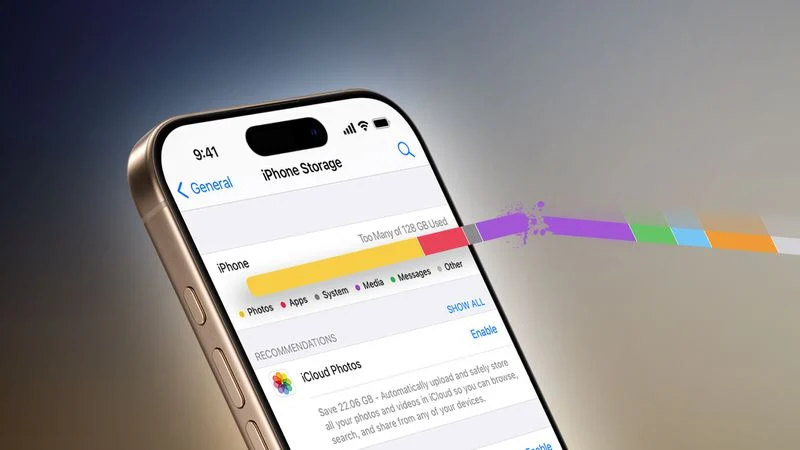
Is your iPhone or iPad running out of storage? Don’t worry! Apple devices often fill up quickly due to apps, photos, videos, and system files, but there are numerous ways to reclaim storage without losing essential content. This guide provides over 20 actionable tips to free up iPhone storage, optimize your device, and keep it running smoothly.
Quick Tips to Check and Manage Storage
- Review Your Storage Usage:
- Navigate to Settings ➝ General ➝ iPhone/iPad Storage.
- Analyze the color-coded bar to see what’s taking up the most space.
- Follow Apple’s recommendations to optimize storage, such as deleting large attachments or offloading unused apps.
- Offload Unused Apps:
- Automatically remove rarely used apps while keeping their data intact.
- Go to Settings ➝ App Store ➝ Offload Unused Apps and toggle the feature on.
- Prevent Automatic Downloads:
- Disable background downloads for iOS updates in Settings ➝ General ➝ Software Update ➝ Automatic Updates.
Optimize Your Photos and Videos
- Enable Optimize Storage:
- Replace high-resolution images with device-sized versions to save space. Activate in Settings ➝ Photos ➝ Optimize iPhone Storage.
- Delete Redundant Burst Photos:
- Review and delete unwanted photos taken in Burst Mode to save space.
- Limit HDR Photos:
- On older models, prevent the device from saving both HDR and standard versions of photos in Settings ➝ Camera ➝ HDR ➝ Keep Normal Photo (toggle off).
- Stop Auto-Saving Media from Apps:
- Prevent apps like WhatsApp from auto-saving shared media by disabling Save to Photos in their settings.
- Reduce Video Recording Quality:
- Adjust video resolution and frame rates in Settings ➝ Camera ➝ Record Video.
- Delete Downloaded Videos:
- Free up space by reviewing and deleting downloaded content from Apple TV or Apple Fitness+.
Clean Up Media and Files from Other Apps
- Manage WhatsApp Media:
- Use the built-in Manage Storage tool to bulk delete forwarded files, large videos, and GIFs.
- Optimize Apple Music Storage:
- Automatically offload unused songs with Settings ➝ Music ➝ Optimize Storage.
- Delete albums or playlists manually to clear space.
- Clear Message Attachments:
- Tap the contact bubble in a conversation to view and delete shared files in bulk.
- Delete Old Messages:
- Automate message deletion after 30 days or a year in Settings ➝ Messages ➝ Keep Messages.
- Remove Unused Voice Memos and Audiobooks:
- Delete old recordings and audiobooks in their respective apps.
Advanced Storage Management
- Compress Files:
- Use the Files app to compress large files and folders. Long-press a file and select Compress.
- Clear App Cache:
- Check apps like Safari and social media platforms for options to clear cache and temporary data.
- Disable Offline Maps:
- In apps like Google Maps, delete offline maps that are no longer needed.
- Reclaim Space from Mail Attachments:
- Remove large email attachments stored in the Mail app settings.
- Reset App Data:
- For apps with large local data (e.g., Netflix or Spotify), clear downloads within their settings.
- Factory Reset as a Last Resort:
- If storage issues persist, consider a factory reset after backing up important data.
When to Consider Upgrading
If you’ve implemented all these tips and your iPhone still struggles with storage, it may be time to upgrade to a higher-capacity device. Alternatively, subscribing to iCloud+ for additional cloud storage can help offload files without losing access to your content.
